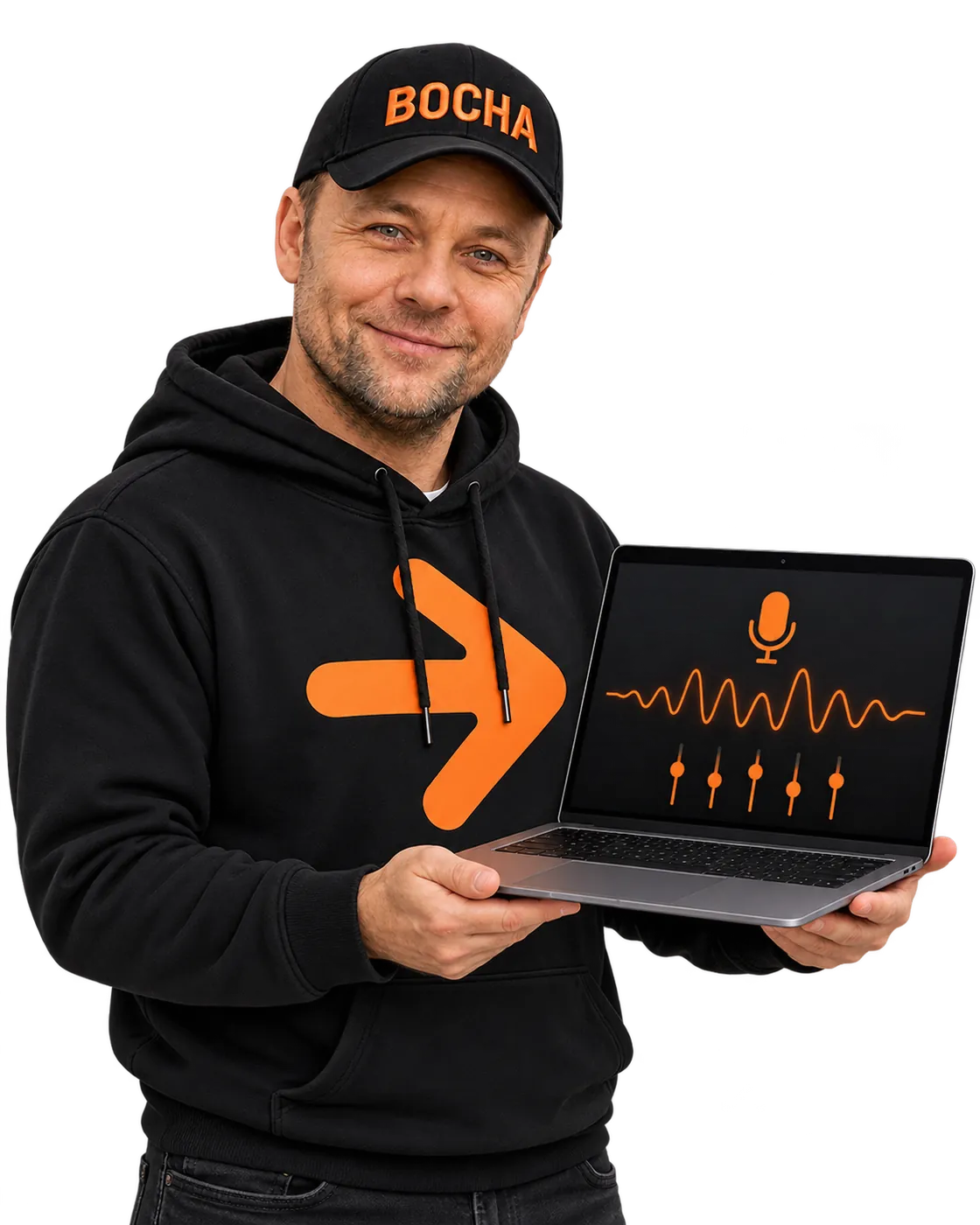
One mic for every call.
Bocha Mic adds a microphone called “Bocha Mic” to your Mac and shapes your voice before the call hears it. Choose it once in Telegram, WhatsApp, Zoom, FaceTime or Google Meet, pick a preset, and switch the real microphone behind it from the menu bar.
New in 0.3.0: voice processing. Open Settings… from the Bocha Mic menu, pick one of six presets or tune your own, and hear the result in headphones.
What’s new in this version and SHA-256
SHA-256

It sits between your microphone and your call.
-
Your microphone
Built-in, USB or a headset. Pick it in the Bocha Mic menu, or leave System Default.
-
Bocha Mic
Cleans up and shapes your voice: equalizer, noise gate, compressor, bass and more. Processing adds less than 2 ms of delay.
-
Your call
In Telegram, WhatsApp, Zoom, FaceTime or Google Meet, choose “Bocha Mic” as the microphone.
Install in four steps.
-
Drag it to Applications
Open the downloaded Bocha Mic file and drag Bocha Mic to the Applications folder.
-
Allow it once
Open Bocha Mic. The first time, macOS won’t open it: the app is signed, but not through a paid Apple developer account. Close the message, go to System Settings › Privacy & Security, scroll down to Security and click Open Anyway next to Bocha Mic. Confirm, with your password if macOS asks. You only need to do this once.
-
Install the driver
A few seconds after launch, Bocha Mic asks “Install the Bocha Mic driver?”. Click Install and enter your Mac password. After that, “Bocha Mic” appears in the list of microphones.
-
Choose “Bocha Mic” in your call
Allow microphone access when macOS asks. Then choose “Bocha Mic” as the microphone in your calling app and pick a preset in the Bocha Mic menu. If the app was already open, restart it so it sees the new microphone.
Updates come inside the app.
Bocha Mic checks for updates by itself. When a new version is out, it shows what’s new: click Install and Relaunch. To check by hand: Bocha Mic in the menu bar › Check for Updates…
If an update can’t install itself, Bocha Mic opens this page. Download the new version and drag it to Applications: there’s no need to remove the old one first.
Uninstalling is one menu item.
Bocha Mic in the menu bar › Uninstall Bocha Mic… It removes the driver, settings, presets and the app itself. macOS will ask for your password.
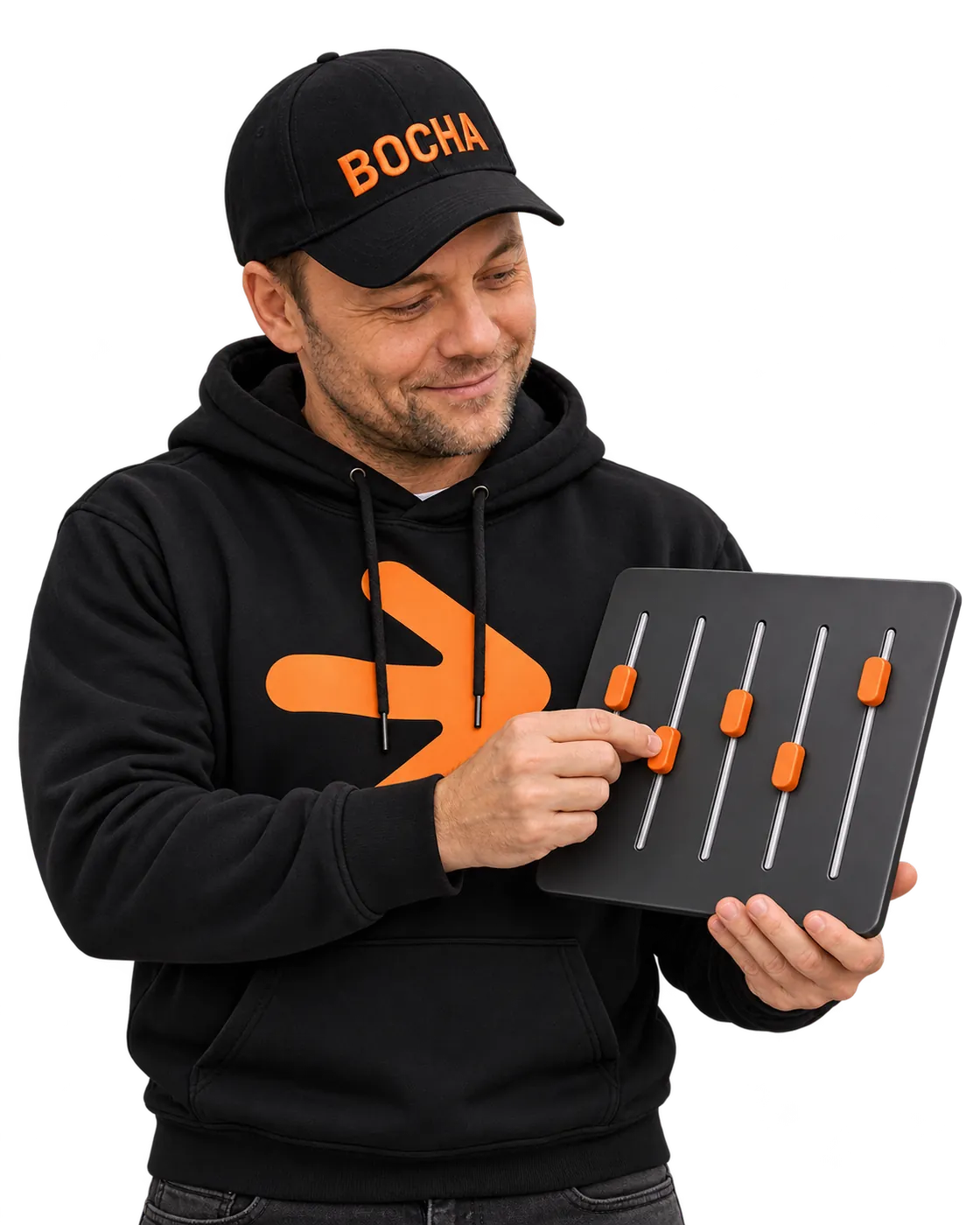
Shape your voice in Settings.
Bocha Mic menu › Settings… opens the Sound page. Pick a preset, turn off Process Voice to compare with your voice as is, and turn on Listen to hear the result in headphones. Every change is heard right away.
Questions.
Why does macOS stop it the first time?
macOS opens apps without asking only when their developer pays for an Apple developer account and sends every build to Apple for a check. Bocha Mic is signed with its own certificate instead, so macOS asks you once. After Open Anyway it opens as usual.
Which preset should I start with?
Bocha Mic starts with Clean. For a laptop’s built-in mic or a webcam try Close Voice, for a Bluetooth headset try Bluetooth Headset. Turn Process Voice off and on to hear the difference, or turn on Listen in Settings to hear yourself in headphones.
Will it work with my app?
Any app that lets you choose a microphone sees “Bocha Mic”: Telegram, WhatsApp, Zoom, FaceTime, Google Meet in a browser, QuickTime and others. If an app was open before you installed the driver, restart it.
Does my voice go anywhere?
No. Sound goes from your microphone through Bocha Mic to your calling app, all on your Mac. Bocha Mic connects to the internet only to check for updates.
What do I need?
A Mac with macOS 14 Sonoma or later. The app asks for an administrator password once, to install its driver.
Can it open when my Mac starts?
Yes: Settings… › General › Open Bocha Mic at Login.